Flip integration readme
Table of contents
- Select Flip channel to integrate
- SocialHub custom channel setup
- Authenticate client
- Get tickets and apply actions
- Troubleshooting
Select Flip channel to integrate
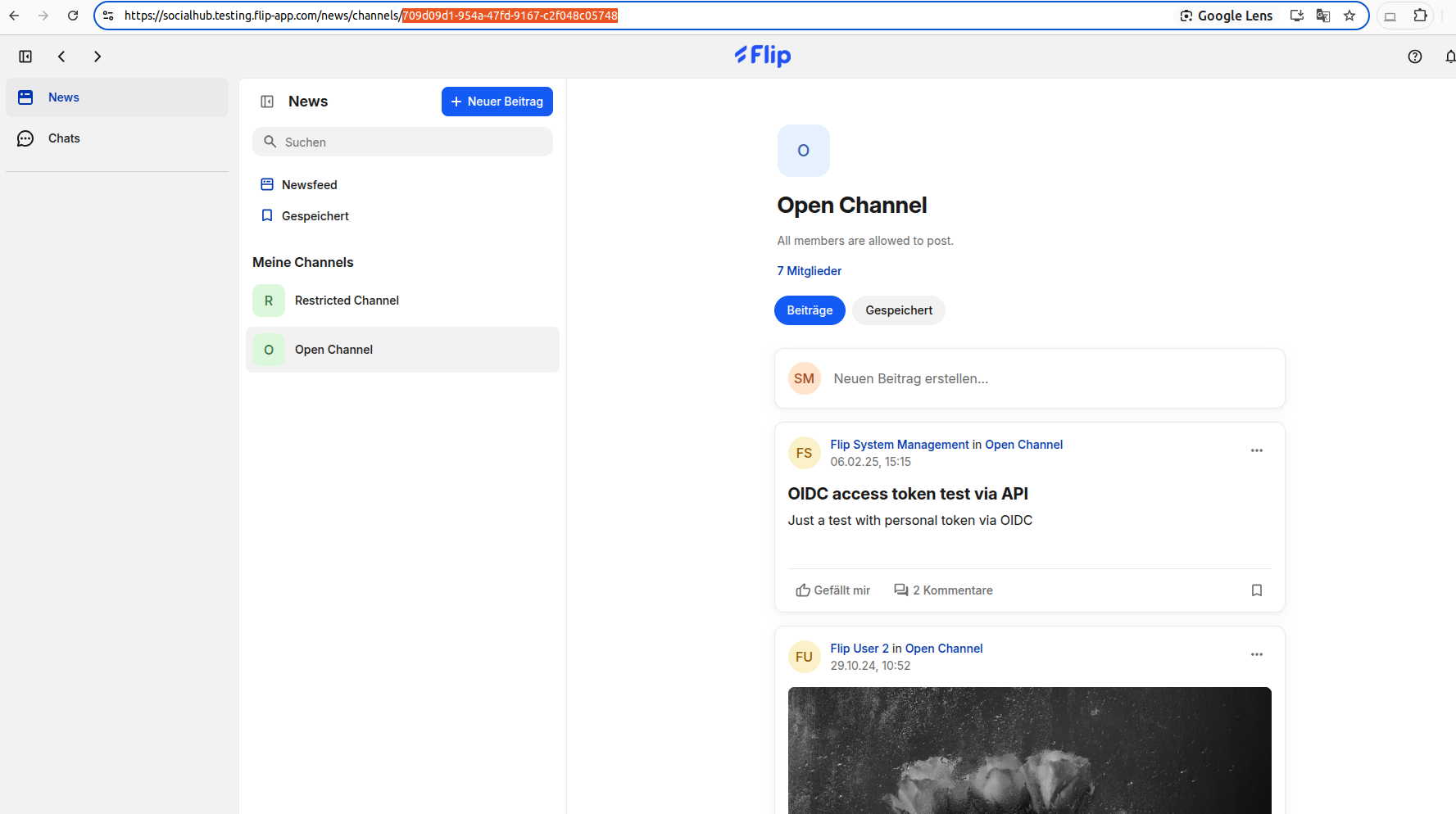
Log in to your Flip account and select a channel on the left (under “My Channels”). You will need the ID of this Flip channel in step 3. The ID is last part of the URL path, see image below.
SocialHub custom channel setup
Create a new custom channel
- Go to SocialHub - Channels.
- Click on "Add channel".
- Select "Inbox API".
- Give your new custom channel a name and add an image, then click "Save".
- After creating the custom channel, copy the access token and save it for later use.
Authenticate client
3.1 First authentication
In this section, it is assumed that you have already created a SocialHub custom channel but have not authenticated any Flip user yet. Please note that the user that is the first to be authenticated for the selected Flip channel should be a moderator of this Flip channel. Otherwise deleting comments will not be possible from the SocialHub Inbox.
You will also be asked to provide an image reader client ID and client secret. These should be the credentials of a specialized client with role USER that has access to Flip media. The image reader client must be added as a user to the Flip channel you want to connect with SocialHub. This step is required so that images attached to Flip posts and comments can be displayed in SocialHub. Flip can help you set up an image reader client.
- Open the form at SocialHub - Flip Integration.
- Copy and paste the SocialHub access token you created in step 2. Then click "Submit and start authentication".
- You will be redirected to a page to configure the integration.
- Specify the OIDC Client ID you got from Flip. Please note that this is not the same as the image reader client ID.
- Specify the URI to the publicly available OIDC configuration (well-known URI). This is also provided by Flip.
- Copy and paste the Flip channel ID from step 1.
- Click "Submit".
- You will be redirected to a Flip login page. Use your Flip user name and password.
- Finally, you will be asked to provide your image reader client credentials.
That's it, you should see Flip posts and comments in SocialHub within the next few minutes! If you made a mistake at any step, you can just start from the scratch with the same SocialHub access token.
3.2 Authenticate a new user
In order to see Flip posts and comments in SocialHub, it suffices to authenticate one user. However, you can send replies from SocialHub only in the names of those Flip users that were authenticated. In this section, assume that step 3.1 has already been done.
- If you are still in the same browser in which step 3.1 was done, make sure that you log out from Flip.
- Open the form at SocialHub - Flip Integration.
- Copy and paste the SocialHub access token you created in step 2. This should be the same access token as in step 3.1. Then click "Submit and start authentication".
- The OIDC configuration was saved in step 3.1, so now you will be immediately asked to authenticate with a Flip user name and password. Use the credentials of any Flip user who is a member of the Flip channel that was selected in step 1.
- Repeat these steps for every Flip user who should be able to send replies to Flip posts and comments from SocialHub.
Now it is possible to send replies from SocialHub in the name of every authenticated Flip user.
Get tickets and apply actions
4.1 Example for a ticket
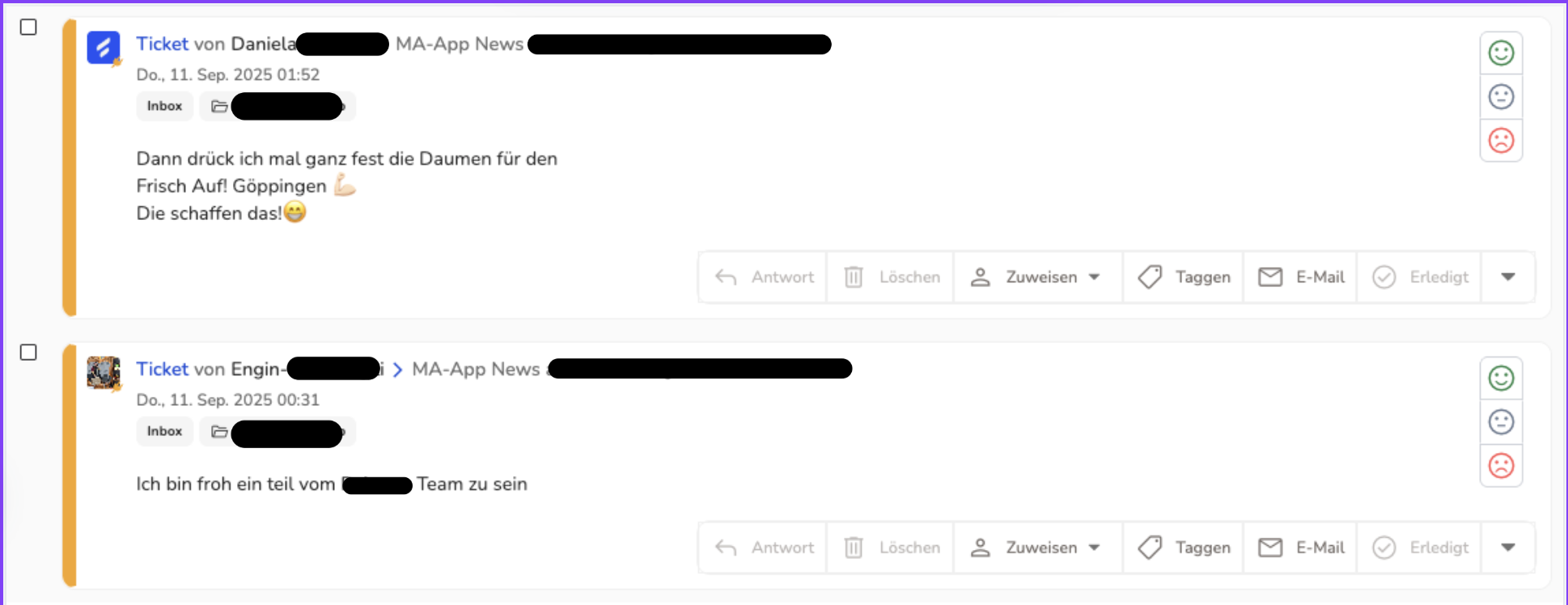
After at least one Flip user has been authenticated, Flip posts and comments will be created as tickets in the Inbox. See the image below for examples.
Ticket creation logic
The Flip integration regularly queries the Flip API for posts created or modified in the last two months. When a new post is found, a new ticket is created from it. When a post is updated, the corresponding ticket is updated accordingly. Comments to the posts from the last two months are also converted to tickets. For each post, only the latest 100 comments (ordered by last modification time) are queried at a time. Please be aware that a comment belonging to a post that is older than two months will not be imported even if the comment itself has been recently created or modified.
Ticket actions
Tickets in the Inbox can be replied to, deleted, assigned to a user, tagged, forwarded by email and archived. Please note the following:
- Whenever you reply to a ticket, you will be asked to select a Flip user to reply as. This action creates a new comment on Flip which will be imported to the Inbox as a new ticket.
- The delete action deletes the post or comment which corresponds to the given ticket. This action will be performed in the name of the first authenticated Flip user. If this user does not have the necessary permissions in Flip, the action will fail.
Troubleshooting
Currently no issues known.
Please do not hesitate to report any issues you run into!